Station 3 · Lesson 3
Removing line noise (50/60 Hz)
eeglab_data.set (D1) · Already applied: High-pass & low-pass filteringDownload the data (opens in a new tab)Script to reach this state
[ALLEEG, EEG, CURRENTSET, ALLCOM] = eeglab;
eeglabRoot = fileparts(which('eeglab'));
EEG = pop_loadset('eeglab_data.set', fullfile(eeglabRoot, 'sample_data'));

% Main dataset: high-pass at 0.1 Hz
EEG = pop_eegfiltnew(EEG, 'locutoff', 0.1);
EEG.filename = ''; EEG.filepath = ''; EEG.datfile = ''; EEG.saved = 'no';
[ALLEEG, EEG, CURRENTSET] = pop_newset(ALLEEG, EEG, 0, 'setname', 'D1 hp0.1', 'gui', 'off');
eeglab redraw;
Your browser's back button takes you to the exact place you were, so open anything you like.
The idea in brief
You need this step if your analysis keeps frequencies above the line frequencyThe number of cycles per second, measured in hertz (Hz)., as in ICAA method that separates the recording into independent sources, some brain and some artifact., spectral analysis, and time-frequencyAnalysis showing how power at each frequency changes over time. analysis. In an ERPThe brain's average response to a given event across many trials. analysis with a 30 Hz low-passA filter that passes low frequencies and weakens fast ones such as muscle activity., you usually do not need it.
On our path we keep the high frequencies until after ICA, so we remove line noiseInterference from the mains supply at 60 Hz in Saudi Arabia or 50 Hz elsewhere. here.
Before and after
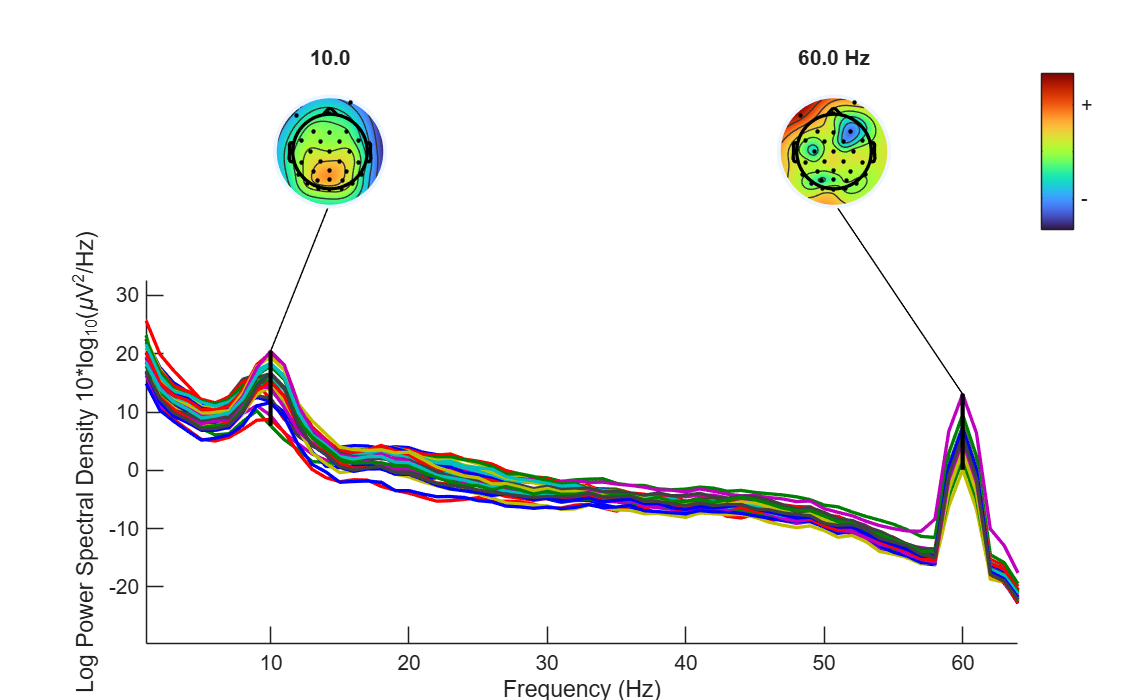
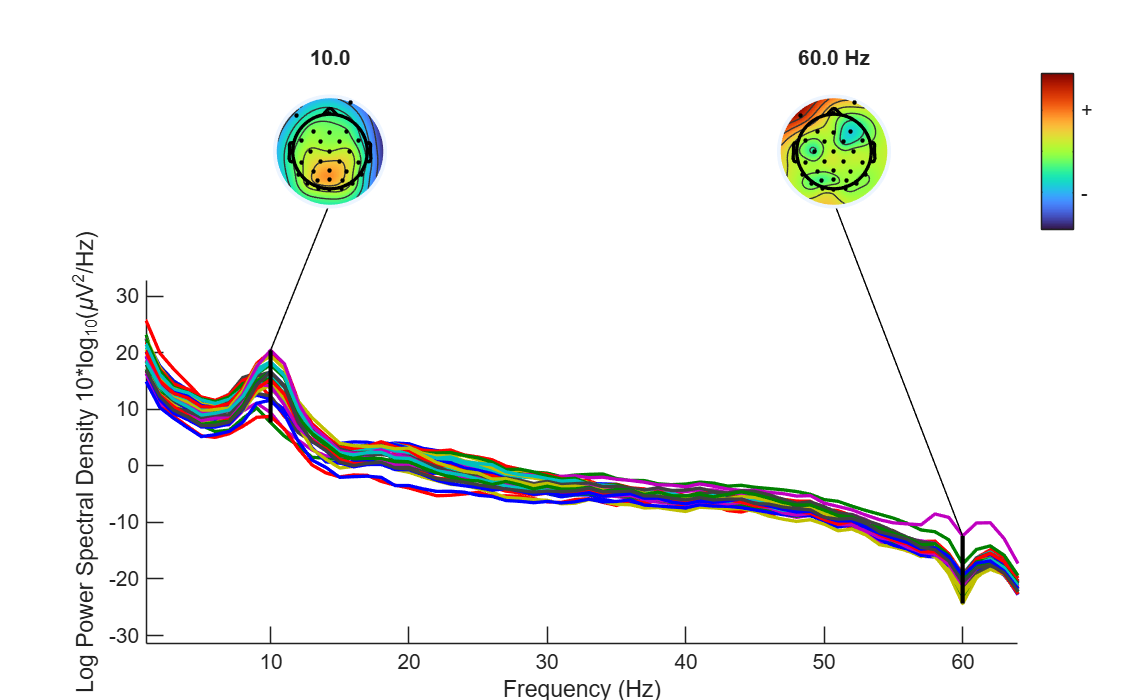
Drag the line to compare.
Your next questions, each answered in its own section:
Why do I need this step?
The reasons in detail, and the terms you need
powerThe squared amplitude; how strong a signal is at a given frequency. lines around the recording setup add a regular wave at a fixed frequency to every channelThe signal recorded from one electrode, as shown in EEGLAB.. It shows in the spectrumHow a signal's strength is distributed across frequencies. as a sharp, narrow peak, and it can be stronger than brain activity in the same range.
The line frequency depends on the country of recording: 60 Hz in Saudi Arabia and the Americas, and 50 Hz in Europe and most other Arab countries. Check the spectrum before you assume.
In D1 the peak is at 60 Hz, about 20 dB (decibel)A logarithmic scale for power that makes large and small values easy to compare. above the neighboring frequencies in most channels.
The method on our path
we use a narrow notch from EEGLAB’s basic filterA tool that weakens some frequencies in a signal and keeps others., because it is in every copy of EEGLAB 2026.1 without installing any pluginA package that adds new functions or menus to EEGLAB.. It removes only a narrow band around 60 Hz and leaves what is below and above it. More precise alternatives are at the end of the lesson.
The method on our path
we use a narrow notch from EEGLAB’s basic filterA tool that weakens some frequencies in a signal and keeps others., because it is in every copy of EEGLAB 2026.1 without installing any pluginA package that adds new functions or menus to EEGLAB.. It removes only a narrow band around 60 Hz and leaves what is below and above it. More precise alternatives are at the end of the lesson.
Why do I need this step?
Power lines around the recording setup add a regular wave at a fixed frequency to every channel. It shows in the spectrum as a sharp, narrow peak, and it can be stronger than brain activity in the same range.
The line frequency depends on the country of recording: 60 Hz in Saudi Arabia and the Americas, and 50 Hz in Europe and most other Arab countries. Check the spectrum before you assume.
In D1 the peak is at 60 Hz, about 20 dB above the neighboring frequencies in most channels.
The method on our path
we use a narrow notch from EEGLAB’s basic filter, because it is in every copy of EEGLAB 2026.1 without installing any extension. It removes only a narrow band around 60 Hz and leaves what is below and above it. More precise alternatives are at the end of the lesson.
The method on our path
we use a narrow notch from EEGLAB’s basic filter, because it is in every copy of EEGLAB 2026.1 without installing any extension. It removes only a narrow band around 60 Hz and leaves what is below and above it. More precise alternatives are at the end of the lesson.
How do I do it in EEGLAB?
12 steps in the menus
Start with the main dataset D1 hp0.1 loaded, as in the Starting point.
First: find the peak in the spectrum
- Open Plot then Channel spectra and maps.
- Change Plotting frequency range [lo_Hz hi_Hz]: from
2 25to1 64. The default range stops at 25 Hz, so it never shows the line-noise peak. - In Frequencies to plot as scalp maps (Hz):, type
10 60. Leave the other fields as they are and press OK. - Look at the spectrum: a sharp, narrow peak at 60 Hz. The scalp map at 60 shows which channels carry the most noise.
Second: apply the notch filter
- Open Tools then Filter the data then Basic FIR filter (new, default).
- In Lower edge of the frequency pass band (Hz), type
58. - In Higher edge of the frequency pass band (Hz), type
62. - Check Notch filter the data instead of pass band. Without this option, the filter keeps only 58 to 62 Hz and removes everything else.
- Leave the other fields as they are and press OK. The filter response window appears, because Plot frequency response is checked by default: a dip at 60 Hz only.
- The command window prints a line that starts with
pop_eegfiltnew() - performingand gives the filter length in points and the filter type. - Name the new dataset
D1 hp0.1 notch60and leave Overwrite it in memory (set=yes; unset=create a new dataset) unchecked. - Save it with File then Save current dataset as. The bad channels lesson starts from it.
Third: compare the spectrum as in the first part, on the new dataset.
How do I do it in EEGLAB?
Start with the main dataset D1 hp0.1 loaded, as in the Starting point.
First: find the peak in the spectrum
- Open Plot then Channel spectra and maps.
- Change Plotting frequency range [lo_Hz hi_Hz]: from
2 25to1 64. The default range stops at 25 Hz, so it never shows the line-noise peak. - In Frequencies to plot as scalp maps (Hz):, type
10 60. Leave the other fields as they are and press OK. - Look at the spectrum: a sharp, narrow peak at 60 Hz. The scalp map at 60 shows which channels carry the most noise.
Second: apply the notch filter
- Open Tools then Filter the data then Basic FIR filter (new, default).
- In Lower edge of the frequency pass band (Hz), type
58. - In Higher edge of the frequency pass band (Hz), type
62. - Check Notch filter the data instead of pass band. Without this option, the filter keeps only 58 to 62 Hz and removes everything else.
- Leave the other fields as they are and press OK. The filter response window appears, because Plot frequency response is checked by default: a dip at 60 Hz only.
- The command window prints a line that starts with
pop_eegfiltnew() - performingand gives the filter length in points and the filter type. - Name the new dataset
D1 hp0.1 notch60and leave Overwrite it in memory (set=yes; unset=create a new dataset) unchecked. - Save it with File then Save current dataset as. The bad channels lesson starts from it.
Third: compare the spectrum as in the first part, on the new dataset.
How do I write it as code?
The same steps in 10 lines of MATLAB
% Line frequency: 60 Hz in Saudi Arabia and the Americas, 50 Hz in Europe
lineFreq = 60;

% Spectrum before, with scalp maps at 10 Hz and at the line frequency
figure; pop_spectopo(EEG, 1, [], 'EEG', 'freqrange', [1 64], 'freq', [10 lineFreq]);

% Notch: remove a narrow band around the line frequency (revfilt = 1)
EEG = pop_eegfiltnew(EEG, 'locutoff', lineFreq - 2, 'hicutoff', lineFreq + 2, 'revfilt', 1);
EEG.setname = 'D1 hp0.1 notch60';

% Spectrum after
figure; pop_spectopo(EEG, 1, [], 'EEG', 'freqrange', [1 64], 'freq', [10 lineFreq]);

EEG = pop_saveset(EEG, 'filename', 'D1_hp0.1_notch60.set', 'filepath', pwd);
The line that enters the path is the filter line itself, and it appears in the Starting point scripts of all the following lessons: pop_eegfiltnew(EEG, 'locutoff', 58, 'hicutoff', 62, 'revfilt', 1).
How do I write it as code?
% Line frequency: 60 Hz in Saudi Arabia and the Americas, 50 Hz in Europe
lineFreq = 60;

% Spectrum before, with scalp maps at 10 Hz and at the line frequency
figure; pop_spectopo(EEG, 1, [], 'EEG', 'freqrange', [1 64], 'freq', [10 lineFreq]);

% Notch: remove a narrow band around the line frequency (revfilt = 1)
EEG = pop_eegfiltnew(EEG, 'locutoff', lineFreq - 2, 'hicutoff', lineFreq + 2, 'revfilt', 1);
EEG.setname = 'D1 hp0.1 notch60';

% Spectrum after
figure; pop_spectopo(EEG, 1, [], 'EEG', 'freqrange', [1 64], 'freq', [10 lineFreq]);

EEG = pop_saveset(EEG, 'filename', 'D1_hp0.1_notch60.set', 'filepath', pwd);
The line that enters the path is the filter line itself, and it appears in the Starting point scripts of all the following lessons: pop_eegfiltnew(EEG, 'locutoff', 58, 'hicutoff', 62, 'revfilt', 1).
Which value should I choose?
Suitable values for your analysis goal
| Setting | Value | Why |
|---|---|---|
| Line frequency | 60 Hz in D1 and in Saudi Arabia, 50 in Europe and most other Arab countries | Set by the country of recording. Always check the spectrum. |
| Notch edges | Line frequency ± 2 Hz: 58 to 62, or 48 to 52 | Narrow enough to keep neighboring frequencies. The transition band here is about 2 Hz, and the official tutorial suggests 1 to 5 Hz for a line-noise filter. At 128 Hz the filter is 213 points long, removal is complete at 60, and half the amplitude is removed at about 59 and 61. |
| Filter order | Leave it empty (automatic) | EEGLAB computes it from the edges and the sampling rate. |
| Harmonics (120, 180 Hz…) | Not needed in D1 | The highest frequency in D1 is 64 Hz. With data at 500 Hz or more, check for peaks at multiples of the line frequency, and remove each peak you see the same way. |
Three ways to remove line noise, and when to use each:
| Method | When to use it | Ships with EEGLAB 2026.1? |
|---|---|---|
Notch filter (pop_eegfiltnew) | ERPs and most cases. This is the method on our path | Yes, in the firfilt extension |
| CleanLine | Spectral analysis where you want to keep the frequencies around 50 or 60 Hz. It estimates the line-noise wave and subtracts it instead of removing a whole band. The official tutorial says its result can be spectacular when it works, and that it does not always work | No, install it from File then Manage EEGLAB extensions |
| Zapline-plus | Spectral or time-frequency analysis above 40 Hz, or strong line noise with many harmonics. It finds the noise and removes it automatically | No, install it from the same menu |
Which value should I choose?
| Setting | Value | Why |
|---|---|---|
| Line frequency | 60 Hz in D1 and in Saudi Arabia, 50 in Europe and most other Arab countries | Set by the country of recording. Always check the spectrum. |
| Notch edges | Line frequency ± 2 Hz: 58 to 62, or 48 to 52 | Narrow enough to keep neighboring frequencies. The transition band here is about 2 Hz, and the official tutorial suggests 1 to 5 Hz for a line-noise filter. At 128 Hz the filter is 213 points long, removal is complete at 60, and half the amplitude is removed at about 59 and 61. |
| Filter order | Leave it empty (automatic) | EEGLAB computes it from the edges and the sampling rate. |
| Harmonics (120, 180 Hz…) | Not needed in D1 | The highest frequency in D1 is 64 Hz. With data at 500 Hz or more, check for peaks at multiples of the line frequency, and remove each peak you see the same way. |
Three ways to remove line noise, and when to use each:
| Method | When to use it | Ships with EEGLAB 2026.1? |
|---|---|---|
Notch filter (pop_eegfiltnew) | ERPs and most cases. This is the method on our path | Yes, in the firfilt extension |
| CleanLine | Spectral analysis where you want to keep the frequencies around 50 or 60 Hz. It estimates the line-noise wave and subtracts it instead of removing a whole band. The official tutorial says its result can be spectacular when it works, and that it does not always work | No, install it from File then Manage EEGLAB extensions |
| Zapline-plus | Spectral or time-frequency analysis above 40 Hz, or strong line noise with many harmonics. It finds the noise and removes it automatically | No, install it from the same menu |
How do I check it worked?
4 quick checks
- Compare the spectrum before and after with the range
1 64. The peak at 60 Hz is gone, and a narrow dip is in its place. - Neighboring frequencies did not change: power at 55 Hz and below, and at the alpha peak near 10 Hz, is as it was before the filter.
- The scalp map at 60 Hz no longer highlights particular channels.
- In the command window you find a line that starts with
pop_eegfiltnew() - performingand gives the filter length, and a line that starts withpop_eegfiltnew() - passband edge(s):and gives the edges 58 and 62.
How do I check it worked?
- Compare the spectrum before and after with the range
1 64. The peak at 60 Hz is gone, and a narrow dip is in its place. - Neighboring frequencies did not change: power at 55 Hz and below, and at the alpha peak near 10 Hz, is as it was before the filter.
- The scalp map at 60 Hz no longer highlights particular channels.
- In the command window you find a line that starts with
pop_eegfiltnew() - performingand gives the filter length, and a line that starts withpop_eegfiltnew() - passband edge(s):and gives the edges 58 and 62.
What mistakes do people make?
5 mistakes and how to avoid them
- Assuming 50 Hz because it is “the usual one”. Saudi Arabia and the Americas use 60 Hz. A 50 Hz filter on Saudi data removes nothing useful and cuts a clean band.
- Checking the spectrum with the default range. The spectrum window plots 2 to 25 Hz by default, so you miss the peak and think the data are clean. Always widen the range to include 50 or 60.
- Forgetting the notch option. Without Notch filter the data instead of pass band the filter becomes a 58 to 62 Hz band-pass and removes all brain activity.
- A notch that is too wide. Removing 45 to 75 Hz, for example, takes real brain and muscle activity with it. Stay within ± 2 Hz.
- Using a low-pass instead of a notch when your analysis needs high frequencies. A 30 Hz low-pass removes line noise, but it also removes everything above 30. That is fine for ERPs at the end of processing, not before ICA.
What mistakes do people make?
- Assuming 50 Hz because it is “the usual one”. Saudi Arabia and the Americas use 60 Hz. A 50 Hz filter on Saudi data removes nothing useful and cuts a clean band.
- Checking the spectrum with the default range. The spectrum window plots 2 to 25 Hz by default, so you miss the peak and think the data are clean. Always widen the range to include 50 or 60.
- Forgetting the notch option. Without Notch filter the data instead of pass band the filter becomes a 58 to 62 Hz band-pass and removes all brain activity.
- A notch that is too wide. Removing 45 to 75 Hz, for example, takes real brain and muscle activity with it. Stay within ± 2 Hz.
- Using a low-pass instead of a notch when your analysis needs high frequencies. A 30 Hz low-pass removes line noise, but it also removes everything above 30. That is fine for ERPs at the end of processing, not before ICA.
Your browser doesn't allow saving progress. All lessons are open, but completion marks won't be saved.
Done. Your progress is saved in this browser.UndoHow do I write it in my paper?
A Methods template: edit the data, settings and versions to match what you ran
A template: edit the data, settings and versions to match what you ran.
Line noise was attenuated with a zero-phase Hamming-windowed sinc FIR band-stop (notch) filter (passband edges 58 and 62 Hz, −6 dB cutoffs [59] and [61] Hz, filter length [213] points; pop_eegfiltnew with ‘revfilt’, firfilt plugin 2.8, EEGLAB 2026.1).How do I write it in my paper?
A template: edit the data, settings and versions to match what you ran.
Line noise was attenuated with a zero-phase Hamming-windowed sinc FIR band-stop (notch) filter (passband edges 58 and 62 Hz, −6 dB cutoffs [59] and [61] Hz, filter length [213] points; pop_eegfiltnew with ‘revfilt’, firfilt plugin 2.8, EEGLAB 2026.1).Where can I read more?
3 sources, official docs first
- EEGLAB TutorialDocumentation5. Preprocess data > a. Filtering: Alternative to filtering for line noise removal
- Makoto's preprocessing pipeline§9 Remove line noise using CleanLine; §9.2 Recommended parameters for CleanLine
- EEGLAB preprocessing #4: FilteringVideoFull video · 10:46
Written for EEGLAB 2026.1 · 2026-10-28
Going further
- EEGLAB Tutorial: https://eeglab.org/tutorials/05_Preprocess/Filtering.html (5. Preprocess data > a. Filtering: Alternative to filtering for line noise removal)
- Makoto's preprocessing pipeline: https://eeglab.ucsd.edu/wiki/Makoto%27s_preprocessing_pipeline (§9 Remove line noise using CleanLine; §9.2 Recommended parameters for CleanLine)
- EEGLAB preprocessing #4: Filtering: https://www.youtube.com/watch?v=nshi47blz7Q (Full video)
Need help?
Ask, share feedback, or report an error
- Report a scientific error · Needs a GitHub account. Don't have one? Use "Share your thoughts".