Station 1 · Lesson 2
The EEGLAB window & menus
eeglab_data.set (D1) · Nothing yet: the data as downloaded.Download the data (opens in a new tab)Script to reach this state
[ALLEEG, EEG, CURRENTSET, ALLCOM] = eeglab;Your browser's back button takes you to the exact place you were, so open anything you like.
The idea in brief
The EEGLAB main window is your dashboard. From it you open data, apply every processing step, and read a summary of the current datasetOne EEG data file loaded in EEGLAB together with its information..
Before and after
Before / After
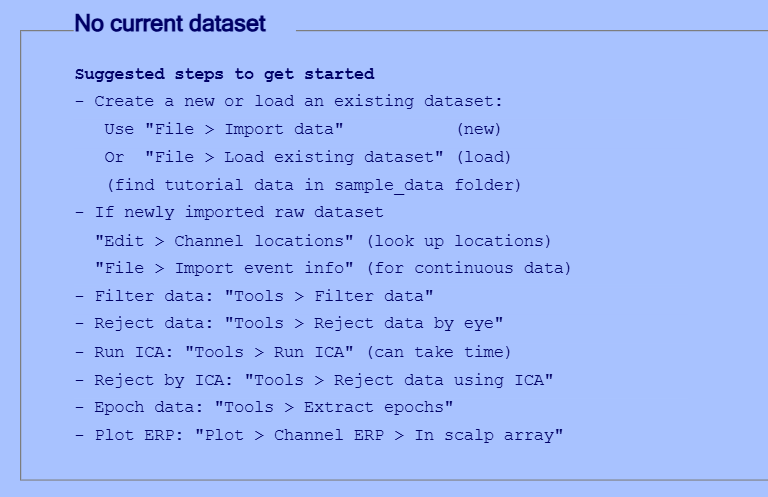
Image coming soon.
After: the same EEGLAB main window after opening eeglab_data.set. At the top the line #1: Continuous EEG Data, then a Filename line, and below them the lines with their values: Channels per frame = 32, Frames per epoch = 30504, Epochs = 1, Events = 154, Sampling rate (Hz) = 128, Epoch start (sec) = 0.000, Epoch end (sec) = 238.305, Reference = unknown, Channel locations = Yes, ICA weights = No, Dataset size (Mb). Each line carries a small number matching a row in the “Which value should I choose?” table. Same window size and frame as the “before” image exactly. Real screenshot from EEGLAB 2026.1 (source: eeglab-ui).
Your next questions, each answered in its own section:
Why do I need this step?
The reasons in detail, and the terms you need
Before any processing, you need to know what you opened: how many channels, at what sampling rateThe number of samples recorded per second on each channel., and for how many minutes. These numbers change with each step, and watching them is the fastest way to catch a mistake.
In this lesson we open the official EEGLAB sampleA single value of the signal at one point in time., eeglab_data.set. It ships with EEGLAB in the sample_data folder, so there is nothing to download.
Why do I need this step?
Before any processing, you need to know what you opened: how many channels, at what sampling rate, and for how many minutes. These numbers change with each step, and watching them is the fastest way to catch a mistake.
In this lesson we open the official EEGLAB sample, eeglab_data.set. It ships with EEGLAB in the sample_data folder, so there is nothing to download.
How do I do it in EEGLAB?
9 steps in the menus
1. Meet the seven menus
Start eeglab. The window bar has seven menus, roughly in the order you use them:
| What it holds | |
|---|---|
| File | Opening, importing and saving data, plugins, and preferences. |
| Edit | Dataset info, events, channelThe signal recorded from one electrode, as shown in EEGLAB. locations, and selecting part of the data. |
| Tools | Processing steps: filteringApplying a filter to the data., ICAA method that separates the recording into independent sources, some brain and some artifact., epoching and more. |
| Plot | Plots: the signalValues that change over time, such as the voltage recorded on a channel., the spectrumHow a signal's strength is distributed across frequencies., and scalp maps. |
| Study | Analyzing a group of participants together (station 8). |
| Datasets | Switching between the datasets open in memory. |
| Help | Documentation and function help. |
Most menus are greyed out for now, because they need an open dataset.
2. Open the dataset
- Open File then Load existing dataset.
- A file selection window opens. Go into the EEGLAB folder, then the
sample_datafolder. - Select
eeglab_data.setand click Open.
The main window fills with the dataset summary, and the menus become available.
3. Browse the signal
- Open Plot then Channel data (scroll).
- A scrolling window opens: each horizontal line is a channel, and the horizontal axis is time in seconds.
- Move with the arrow buttons at the bottom: the single arrow (
>or<) moves one second, and the double arrow (>>or<<) moves almost a full window. - Zoom the signal in or out with the + and - buttons. The number next to them is the spacing between channels in microvolts.
- The colored vertical lines are the events, with each eventA marker in the recording that flags a moment of interest, such as a stimulus.’s name above it (
squareorrt). - To change the time window length or the number of channels shown, use Settings then Time range to display inside the scrolling window.
Image coming soon.
The Channel data (scroll) window after opening eeglab_data.set: channel names on the left, vertical event lines for square and rt, the four arrow buttons for moving at the bottom, and the scale box between the + and - buttons. Arrows mark one channel, one event, the move buttons, and the scale. Real screenshot from EEGLAB 2026.1 (source: eeglab-ui).
How do I do it in EEGLAB?
1. Meet the seven menus
Start eeglab. The window bar has seven menus, roughly in the order you use them:
| Menu | What it holds |
|---|---|
| File | Opening, importing and saving data, plugins, and preferences. |
| Edit | Dataset info, events, channel locations, and selecting part of the data. |
| Tools | Processing steps: filtering, ICA, epoching and more. |
| Plot | Plots: the signal, the spectrum, and scalp maps. |
| Study | Analyzing a group of participants together (station 8). |
| Datasets | Switching between the datasets open in memory. |
| Help | Documentation and function help. |
Most menus are greyed out for now, because they need an open dataset.
2. Open the dataset
- Open File then Load existing dataset.
- A file selection window opens. Go into the EEGLAB folder, then the
sample_datafolder. - Select
eeglab_data.setand click Open.
The main window fills with the dataset summary, and the menus become available.
3. Browse the signal
- Open Plot then Channel data (scroll).
- A scrolling window opens: each horizontal line is a channel, and the horizontal axis is time in seconds.
- Move with the arrow buttons at the bottom: the single arrow (
>or<) moves one second, and the double arrow (>>or<<) moves almost a full window. - Zoom the signal in or out with the + and - buttons. The number next to them is the spacing between channels in microvolts.
- The colored vertical lines are the events, with each event’s name above it (
squareorrt). - To change the time window length or the number of channels shown, use Settings then Time range to display inside the scrolling window.
Image coming soon.
The Channel data (scroll) window after opening eeglab_data.set: channel names on the left, vertical event lines for square and rt, the four arrow buttons for moving at the bottom, and the scale box between the + and - buttons. Arrows mark one channel, one event, the move buttons, and the scale. Real screenshot from EEGLAB 2026.1 (source: eeglab-ui).
How do I write it as code?
The same steps in 10 lines of MATLAB
% Start EEGLAB and get its main variables
[ALLEEG, EEG, CURRENTSET, ALLCOM] = eeglab;

% Load the sample dataset that ships with EEGLAB
sampleFolder = fullfile(fileparts(which('eeglab')), 'sample_data');
EEG = pop_loadset('filename', 'eeglab_data.set', 'filepath', sampleFolder);

% Register it in EEGLAB and refresh the main window
[ALLEEG, EEG, CURRENTSET] = pop_newset(ALLEEG, EEG, 0, 'gui', 'off');
eeglab redraw;

% Scroll through the channel data
pop_eegplot(EEG, 1, 1, 1);fileparts(which('eeglab'))returns the EEGLAB folder wherever you installed it, so the scriptA MATLAB file of commands that runs processing steps in order. works on any computer.pop_newsetadds the dataset to EEGLAB’s list of datasets ('gui', 'off'skips the naming window), andeeglab redrawrefreshes the main window. EEGLAB uses the same function when you open a dataset from File > Load existing dataset.
How do I write it as code?
% Start EEGLAB and get its main variables
[ALLEEG, EEG, CURRENTSET, ALLCOM] = eeglab;

% Load the sample dataset that ships with EEGLAB
sampleFolder = fullfile(fileparts(which('eeglab')), 'sample_data');
EEG = pop_loadset('filename', 'eeglab_data.set', 'filepath', sampleFolder);

% Register it in EEGLAB and refresh the main window
[ALLEEG, EEG, CURRENTSET] = pop_newset(ALLEEG, EEG, 0, 'gui', 'off');
eeglab redraw;

% Scroll through the channel data
pop_eegplot(EEG, 1, 1, 1);fileparts(which('eeglab'))returns the EEGLAB folder wherever you installed it, so the script works on any computer.pop_newsetadds the dataset to EEGLAB’s list of datasets ('gui', 'off'skips the naming window), andeeglab redrawrefreshes the main window. EEGLAB uses the same function when you open a dataset from File > Load existing dataset.
Which value should I choose?
Suitable values for your analysis goal
There is no value to choose here. What matters is reading the main window correctly. This is what each line means, and its value in the tutorial dataset:
| Line | Meaning | Value in eeglab_data.set |
|---|---|---|
| Channels per frame | Number of channels | 32 |
| Frames per epoch | Number of samples per channel (for continuous data: the whole recording) | 30504 |
| Epochs | Number of segments. A value of 1 means continuous data that has not been epoched | 1 |
| Events | Number of events | 154 |
| Sampling rate (Hz) | Sampling rate: samples per second | 128 |
| Epoch start (sec) and Epoch end (sec) | Start and end of the data in seconds | 0.000 and 238.305 |
| Reference | The referenceThe point against which each channel's voltage is measured. the channels were recorded against | unknown: EEGLAB does not know this file’s reference, although it was recorded with a mastoid reference. You will come back to this in the re-referencing lesson |
| Channel locations | Do the channels have positions on the head? | Yes |
| ICA weights | Has ICA been computed for this dataset? | No |
Recording length = number of samples ÷ sampling rate = 30504 ÷ 128 = 238.3 seconds, about 4 minutes. This is roughly the number in Epoch end (sec).
Which value should I choose?
There is no value to choose here. What matters is reading the main window correctly. This is what each line means, and its value in the tutorial dataset:
| Line | Meaning | Value in eeglab_data.set |
|---|---|---|
| Channels per frame | Number of channels | 32 |
| Frames per epoch | Number of samples per channel (for continuous data: the whole recording) | 30504 |
| Epochs | Number of segments. A value of 1 means continuous data that has not been epoched | 1 |
| Events | Number of events | 154 |
| Sampling rate (Hz) | Sampling rate: samples per second | 128 |
| Epoch start (sec) and Epoch end (sec) | Start and end of the data in seconds | 0.000 and 238.305 |
| Reference | The reference the channels were recorded against | unknown: EEGLAB does not know this file’s reference, although it was recorded with a mastoid reference. You will come back to this in the re-referencing lesson |
| Channel locations | Do the channels have positions on the head? | Yes |
| ICA weights | Has ICA been computed for this dataset? | No |
Recording length = number of samples ÷ sampling rate = 30504 ÷ 128 = 238.3 seconds, about 4 minutes. This is roughly the number in Epoch end (sec).
How do I check it worked?
4 quick checks
- The first line of the main window starts with
#1:followed by the dataset nameContinuous EEG Data. - The values match the table above: 32 channels, 128 Hz, 30504 samples, and 154 events.
- The scrolling window shows 32 channels with their names, and the
squareandrtevent lines appear in it. - From the Command Window: type
EEG.setname. It should print'Continuous EEG Data'.
How do I check it worked?
- The first line of the main window starts with
#1:followed by the dataset nameContinuous EEG Data. - The values match the table above: 32 channels, 128 Hz, 30504 samples, and 154 events.
- The scrolling window shows 32 channels with their names, and the
squareandrtevent lines appear in it. - From the Command Window: type
EEG.setname. It should print'Continuous EEG Data'.
What mistakes do people make?
5 mistakes and how to avoid them
- Menus are grey and do not respond. You have not opened a dataset yet, or the open dataset does not suit that menu. Open a dataset first.
- Reading Frames per epoch as time. It is a sample count, not seconds. Divide it by the sampling rate to get seconds.
- Picking the
.fdtfile in the open window. Always open the.setfile. The.fdtfile holds the signal only, and EEGLAB reads it automatically with the.setfile (details in the.setand.fdtlesson, an optional lesson). - Saving over the sample file. Do not use File then Resave current dataset(s) after changing
eeglab_data.set. Save any modified copy under a new name in your own folder with File then Save current dataset as, so the original sample stays intact for the other lessons. - Closing the main window by mistake. The data stays in memory. Type
eeglab redrawin the Command Window to bring the window back with the same data.
What mistakes do people make?
- Menus are grey and do not respond. You have not opened a dataset yet, or the open dataset does not suit that menu. Open a dataset first.
- Reading Frames per epoch as time. It is a sample count, not seconds. Divide it by the sampling rate to get seconds.
- Picking the
.fdtfile in the open window. Always open the.setfile. The.fdtfile holds the signal only, and EEGLAB reads it automatically with the.setfile (details in the.setand.fdtlesson, an optional lesson). - Saving over the sample file. Do not use File then Resave current dataset(s) after changing
eeglab_data.set. Save any modified copy under a new name in your own folder with File then Save current dataset as, so the original sample stays intact for the other lessons. - Closing the main window by mistake. The data stays in memory. Type
eeglab redrawin the Command Window to bring the window back with the same data.
Your browser doesn't allow saving progress. All lessons are open, but completion marks won't be saved.
Done. Your progress is saved in this browser.UndoWhere can I read more?
2 sources, official docs first
- EEGLAB TutorialDocumentation2. Quickstart
- EEGLAB Tutorial dataDocumentationTutorial data
Written for EEGLAB 2026.1 · 2026-10-28
Going further
- EEGLAB Tutorial: https://eeglab.org/tutorials/02_Quickstart/quickstart.html (2. Quickstart)
- EEGLAB Tutorial data: https://eeglab.org/tutorials/tutorial_data.html (Tutorial data)
Need help?
Ask, share feedback, or report an error
- Report a scientific error · Needs a GitHub account. Don't have one? Use "Share your thoughts".