Station 9 · Lesson 1
eegh & the command history
eeglab_data.set (D1) · Nothing yet: the data as downloaded.Download the data (opens in a new tab)Script to reach this state
% Start a fresh EEGLAB session so the history begins empty
clear
[ALLEEG, EEG, CURRENTSET, ALLCOM] = eeglab;
Your browser's back button takes you to the exact place you were, so open anything you like.
The idea in brief
Every click in the EEGLAB window runs a line of MATLAB behind the scenes. EEGLAB keeps these lines, in order, in the command historyThe list of commands the GUI has run, shown by the eegh command., and the eegh command shows them to you.
Before and after
What does this show?
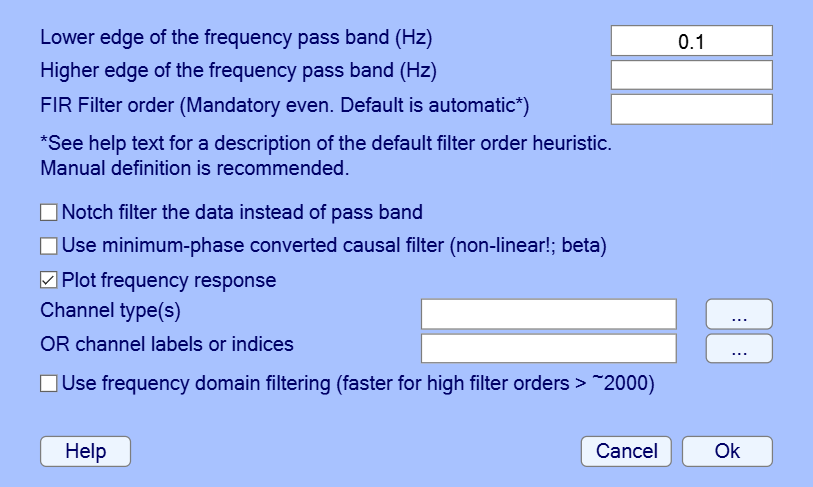
After you click Ok in this window, type eegh in the command window. The matching line is:
EEG = pop_eegfiltnew(EEG, 'locutoff',0.1,'plotfreqz',1);Each field you filled in the window is in the line: 'locutoff',0.1 is the lower edge, and 'plotfreqz',1 is the ticked Plot frequency response box.
What does this show?
After you click Ok in this window, type eegh in the command window. The matching line is:
EEG = pop_eegfiltnew(EEG, 'locutoff',0.1,'plotfreqz',1);Each field you filled in the window is in the line: 'locutoff',0.1 is the lower edge, and 'plotfreqz',1 is the ticked Plot frequency response box.
Your next questions, each answered in its own section:
Why do I need this step?
The reasons in detail, and the terms you need
This history is your first scriptA MATLAB file of commands that runs processing steps in order., and you did not type a single character of it. Save it to a file, and you can repeat the same analysis in one click, or apply it to another participantThe person whose data were recorded in the study..
The history is also an exact record of what you did. A month from now you will not remember which filterA tool that weakens some frequencies in a signal and keeps others. edge you chose. The history will.
Why do I need this step?
This history is your first script, and you did not type a single character of it. Save it to a file, and you can repeat the same analysis in one click, or apply it to another participant.
The history is also an exact record of what you did. A month from now you will not remember which filter edge you chose. The history will.
How do I do it in EEGLAB?
11 steps in the menus
Start a fresh session as in “Starting point”: clear, then eeglab. Running eeglab starts a new, empty history, so it does not mix with commands from an earlier session.
First: run a few steps from the GUIThe windows and menus used with the mouse instead of typed commands.
- Open File then Load existing dataset and choose
eeglab_data.setfrom thesample_datafolder inside the EEGLAB folder. - Open Tools then Filter the data then Basic FIR filter (new, default). Type
0.1in Lower edge of the frequency pass band (Hz) and press Ok. Close the filter response window and name the datasetOne EEG data file loaded in EEGLAB together with its information.D1 hp0.1. - Open the same again to remove 60 Hz line noiseInterference from the mains supply at 60 Hz in Saudi Arabia or 50 Hz elsewhere.. Type
58in Lower edge of the frequency pass band (Hz) and62in Higher edge of the frequency pass band (Hz), and check Notch filter the data instead of pass band. Press Ok and name the datasetD1 hp0.1 notch60. - Open Plot then Channel data (scroll), then close the window.
Second: show the history
- In the MATLAB command window, type
eeghand press Enter. EEGLAB prints every command of the session, oldest first. It will look like this (your path will differ):
[ALLEEG EEG CURRENTSET ALLCOM] = eeglab;
EEG = pop_loadset('filename','eeglab_data.set','filepath','C:\eeglab2026.1\sample_data\');
[ALLEEG, EEG, CURRENTSET] = eeg_store( ALLEEG, EEG, 0 );
EEG = pop_eegfiltnew(EEG, 'locutoff',0.1,'plotfreqz',1);
[ALLEEG EEG CURRENTSET] = pop_newset(ALLEEG, EEG, 1,'setname','D1 hp0.1','gui','off');
EEG = pop_eegfiltnew(EEG, 'locutoff',58,'hicutoff',62,'revfilt',1,'plotfreqz',1);
[ALLEEG EEG CURRENTSET] = pop_newset(ALLEEG, EEG, 2,'setname','D1 hp0.1 notch60','gui','off');
pop_eegplot( EEG, 1, 1, 1);- Match each line to its step. Notice that the Notch filter the data instead of pass band checkbox became
'revfilt',1, and Plot frequency response became'plotfreqz',1. This is how you learn the script name of each option from the GUI itself.
Third: save the history to a file
- Open File then History scripts then Save session history script. The suggested name is
eeglabhist.m. Change it tomy_first_history.mand save it in your working folder. - Type
EEG.historyin the command window. This is the dataset history: the commands for the current dataset only, without the dataset management commands. It starts with lines you did not write, with paths like/Users/arno/...: this is the file’s history on the computers of the people who made it, because the history is saved inside the.setfile and travels with it. Then comes a line that records the EEGLAB version, then the two filter lines, and at the end apop_eegplotline, because you opened the scroll window from the menu. - To save it to a file, open File then History scripts then Save dataset history script.
Fourth: run the history
- Close EEGLAB, then type
clearandclose all. - Open
my_first_history.min the MATLAB editor and press Run. All the steps repeat on their own, and the scroll window opens at the end. You can also run it from File then History scripts then Run script.
Session history or dataset history?
The session history (eegh) keeps everything you did in the session, for all datasets, and it is lost when you run eeglab again if you did not save it. The dataset history (EEG.history) keeps what changed this dataset only, and it is saved inside the .set file, so you will still find it a year later when you open the file.
Session history or dataset history?
The session history (eegh) keeps everything you did in the session, for all datasets, and it is lost when you run eeglab again if you did not save it. The dataset history (EEG.history) keeps what changed this dataset only, and it is saved inside the .set file, so you will still find it a year later when you open the file.
How do I do it in EEGLAB?
Start a fresh session as in “Starting point”: clear, then eeglab. Running eeglab starts a new, empty history, so it does not mix with commands from an earlier session.
First: run a few steps from the GUI
- Open File then Load existing dataset and choose
eeglab_data.setfrom thesample_datafolder inside the EEGLAB folder. - Open Tools then Filter the data then Basic FIR filter (new, default). Type
0.1in Lower edge of the frequency pass band (Hz) and press Ok. Close the filter response window and name the datasetD1 hp0.1. - Open the same menu again to remove 60 Hz line noise. Type
58in Lower edge of the frequency pass band (Hz) and62in Higher edge of the frequency pass band (Hz), and check Notch filter the data instead of pass band. Press Ok and name the datasetD1 hp0.1 notch60. - Open Plot then Channel data (scroll), then close the window.
Second: show the history
- In the MATLAB command window, type
eeghand press Enter. EEGLAB prints every command of the session, oldest first. It will look like this (your path will differ):
[ALLEEG EEG CURRENTSET ALLCOM] = eeglab;
EEG = pop_loadset('filename','eeglab_data.set','filepath','C:\eeglab2026.1\sample_data\');
[ALLEEG, EEG, CURRENTSET] = eeg_store( ALLEEG, EEG, 0 );
EEG = pop_eegfiltnew(EEG, 'locutoff',0.1,'plotfreqz',1);
[ALLEEG EEG CURRENTSET] = pop_newset(ALLEEG, EEG, 1,'setname','D1 hp0.1','gui','off');
EEG = pop_eegfiltnew(EEG, 'locutoff',58,'hicutoff',62,'revfilt',1,'plotfreqz',1);
[ALLEEG EEG CURRENTSET] = pop_newset(ALLEEG, EEG, 2,'setname','D1 hp0.1 notch60','gui','off');
pop_eegplot( EEG, 1, 1, 1);- Match each line to its step. Notice that the Notch filter the data instead of pass band checkbox became
'revfilt',1, and Plot frequency response became'plotfreqz',1. This is how you learn the script name of each option from the GUI itself.
Third: save the history to a file
- Open File then History scripts then Save session history script. The suggested name is
eeglabhist.m. Change it tomy_first_history.mand save it in your working folder. - Type
EEG.historyin the command window. This is the dataset history: the commands for the current dataset only, without the dataset management commands. It starts with lines you did not write, with paths like/Users/arno/...: this is the file’s history on the computers of the people who made it, because the history is saved inside the.setfile and travels with it. Then comes a line that records the EEGLAB version, then the two filter lines, and at the end apop_eegplotline, because you opened the scroll window from the menu. - To save it to a file, open File then History scripts then Save dataset history script.
Fourth: run the history
- Close EEGLAB, then type
clearandclose all. - Open
my_first_history.min the MATLAB editor and press Run. All the steps repeat on their own, and the scroll window opens at the end. You can also run it from File then History scripts then Run script.
Session history or dataset history?
The session history (eegh) keeps everything you did in the session, for all datasets, and it is lost when you run eeglab again if you did not save it. The dataset history (EEG.history) keeps what changed this dataset only, and it is saved inside the .set file, so you will still find it a year later when you open the file.
Session history or dataset history?
The session history (eegh) keeps everything you did in the session, for all datasets, and it is lost when you run eeglab again if you did not save it. The dataset history (EEG.history) keeps what changed this dataset only, and it is saved inside the .set file, so you will still find it a year later when you open the file.
How do I write it as code?
The same steps in 15 lines of MATLAB
The history script works as is, but it is written for the machine, not for you. Clean it before you rely on it. Here is the same history after cleaning:
% Rebuilt from the EEGLAB session history (eegh)
eeglab nogui
eeglabRoot = fileparts(which('eeglab'));

% Load the sample dataset (portable path, works on any computer)
EEG = pop_loadset('filename', 'eeglab_data.set', 'filepath', fullfile(eeglabRoot, 'sample_data'));

% High-pass: passband edge at 0.1 Hz
[EEG, com] = pop_eegfiltnew(EEG, 'locutoff', 0.1);
EEG = eeg_hist(EEG, com);

% Line noise: notch between 58 and 62 Hz
[EEG, com] = pop_eegfiltnew(EEG, 'locutoff', 58, 'hicutoff', 62, 'revfilt', 1);
EEG = eeg_hist(EEG, com);
EEG.setname = 'D1 hp0.1 notch60';
EEG = eeg_checkset(EEG);

% Save the dataset history to a file, for your records
pop_saveh(EEG.history, 'D1_hp0.1_notch60_history.m', pwd);
What changed from the raw history:
- The fixed path became
fullfile(eeglabRoot, 'sample_data'), so the script works on any computer. 'plotfreqz',1was removed, so no step stops at a plot window.- The
eeg_storeandpop_newsetlines were removed, because they manage datasets in the GUI. The script works on a singleEEGvariable, and the name goes inEEG.setname. eeglab noguireplaceseeglab, so EEGLAB loads its functions without opening the main window.- Comments were added, because a line of code says what it does, and a comment says why.
[EEG, com]andeeg_histwere added.pop_functions return their command line as the second outputcom, andeeg_histadds it toEEG.history. Without them the dataset history stays empty of the script’s steps, because EEGLAB writes the history automatically only for commands run from the menus.
pop_saveh from a script
pop_saveh does the same as the Save dataset history script menu item. To save the session history from a script, type pop_saveh(ALLCOM, 'session_history.m', pwd).
pop_saveh from a script
pop_saveh does the same as the Save dataset history script menu item. To save the session history from a script, type pop_saveh(ALLCOM, 'session_history.m', pwd).
How do I write it as code?
The history script works as is, but it is written for the machine, not for you. Clean it before you rely on it. Here is the same history after cleaning:
% Rebuilt from the EEGLAB session history (eegh)
eeglab nogui
eeglabRoot = fileparts(which('eeglab'));

% Load the sample dataset (portable path, works on any computer)
EEG = pop_loadset('filename', 'eeglab_data.set', 'filepath', fullfile(eeglabRoot, 'sample_data'));

% High-pass: passband edge at 0.1 Hz
[EEG, com] = pop_eegfiltnew(EEG, 'locutoff', 0.1);
EEG = eeg_hist(EEG, com);

% Line noise: notch between 58 and 62 Hz
[EEG, com] = pop_eegfiltnew(EEG, 'locutoff', 58, 'hicutoff', 62, 'revfilt', 1);
EEG = eeg_hist(EEG, com);
EEG.setname = 'D1 hp0.1 notch60';
EEG = eeg_checkset(EEG);

% Save the dataset history to a file, for your records
pop_saveh(EEG.history, 'D1_hp0.1_notch60_history.m', pwd);
What changed from the raw history:
- The fixed path became
fullfile(eeglabRoot, 'sample_data'), so the script works on any computer. 'plotfreqz',1was removed, so no step stops at a plot window.- The
eeg_storeandpop_newsetlines were removed, because they manage datasets in the GUI. The script works on a singleEEGvariable, and the name goes inEEG.setname. eeglab noguireplaceseeglab, so EEGLAB loads its functions without opening the main window.- Comments were added, because a line of code says what it does, and a comment says why.
[EEG, com]andeeg_histwere added.pop_functions return their command line as the second outputcom, andeeg_histadds it toEEG.history. Without them the dataset history stays empty of the script’s steps, because EEGLAB writes the history automatically only for commands run from the menus.
pop_saveh from a script
pop_saveh does the same as the Save dataset history script menu item. To save the session history from a script, type pop_saveh(ALLCOM, 'session_history.m', pwd).
pop_saveh from a script
pop_saveh does the same as the Save dataset history script menu item. To save the session history from a script, type pop_saveh(ALLCOM, 'session_history.m', pwd).
Which value should I choose?
Suitable values for your analysis goal
| You want to | Use | Why |
|---|---|---|
| Repeat everything you did today, across all datasets | Session history: eegh or Save session history script | It includes the load, save and dataset management commands, so it replays the whole session. |
Know how a specific .set file was made | Dataset history: EEG.history | It is saved inside the file itself, so it stays with the data (official EEGLAB tutorial, section EEGLAB dataset history). |
| Build a script for other participants | The dataset history, cleaned | It is shorter and has no GUI commands, so it moves easily into a loop over participants (the batch processingRunning the same script automatically on many participants' files. lesson). |
Which value should I choose?
| You want to | Use | Why |
|---|---|---|
| Repeat everything you did today, across all datasets | Session history: eegh or Save session history script | It includes the load, save and dataset management commands, so it replays the whole session. |
Know how a specific .set file was made | Dataset history: EEG.history | It is saved inside the file itself, so it stays with the data (official EEGLAB tutorial, section EEGLAB dataset history). |
| Build a script for other participants | The dataset history, cleaned | It is shorter and has no GUI commands, so it moves easily into a loop over participants (the batch processing lesson). |
How do I check it worked?
3 quick checks
- The script runs on its own. Run the clean script in a fresh session. It should finish without any error and without asking you to click anything.
- Same processing. After it runs, type
EEG.history. You should see the two filter lines with the same numbers you chose in the GUI:0.1, then58and62with'revfilt',1. - The history file exists. In your working folder you should find
D1_hp0.1_notch60_history.m. Open it, and you will find the same two filter lines.
How do I check it worked?
- The script runs on its own. Run the clean script in a fresh session. It should finish without any error and without asking you to click anything.
- Same processing. After it runs, type
EEG.history. You should see the two filter lines with the same numbers you chose in the GUI:0.1, then58and62with'revfilt',1. - The history file exists. In your working folder you should find
D1_hp0.1_notch60_history.m. Open it, and you will find the same two filter lines.
What mistakes do people make?
4 mistakes and how to avoid them
- Running
eeglabagain before saving the session history.eeglabstarts an empty history. Save the history first, or rely on theEEG.historysaved with the dataset. - Sharing a script with a fixed path. A line like
'filepath','C:\Users\...'will not work on your colleague’s computer. Replace it withfullfileas in the script above. - Expecting steps run outside the menus to be recorded. EEGLAB writes the history for commands run from the menus only. What you type yourself in the command window does not appear in
eegh, and runningpop_eegfiltnewfrom a script does not changeEEG.history. If you want the saved file to carry its history, addEEG = eeg_hist(EEG, com);after each step, as in the script above. - Running the dataset history as is. It starts with old lines from the file’s creator, with paths from their computer, so it stops at the first line. Copy only the processing lines from it, and start your script with a load command that uses a path from your own computer.
What mistakes do people make?
- Running
eeglabagain before saving the session history.eeglabstarts an empty history. Save the history first, or rely on theEEG.historysaved with the dataset. - Sharing a script with a fixed path. A line like
'filepath','C:\Users\...'will not work on your colleague’s computer. Replace it withfullfileas in the script above. - Expecting steps run outside the menus to be recorded. EEGLAB writes the history for commands run from the menus only. What you type yourself in the command window does not appear in
eegh, and runningpop_eegfiltnewfrom a script does not changeEEG.history. If you want the saved file to carry its history, addEEG = eeg_hist(EEG, com);after each step, as in the script above. - Running the dataset history as is. It starts with old lines from the file’s creator, with paths from their computer, so it stops at the first line. Copy only the processing lines from it, and start your script with a load command that uses a path from your own computer.
Your browser doesn't allow saving progress. All lessons are open, but completion marks won't be saved.
Done. Your progress is saved in this browser.UndoWhere can I read more?
2 sources, official docs first
- EEGLAB TutorialDocumentation11. Write scripts > a. Using EEGLAB history
- EEGLAB TutorialDocumentationEEGLAB functions
Written for EEGLAB 2026.1 · 2026-10-28
Going further
- EEGLAB Tutorial: https://eeglab.org/tutorials/11_Scripting/Using_EEGLAB_history.html (11. Write scripts > a. Using EEGLAB history)
- EEGLAB Tutorial: https://eeglab.org/tutorials/ConceptsGuide/EEGLAB_functions.html (EEGLAB functions)
Need help?
Ask, share feedback, or report an error
- Report a scientific error · Needs a GitHub account. Don't have one? Use "Share your thoughts".